
Jump to a section
Quick answer: how does Whop connect to Shopify?
To connect Whop payments to a Shopify store, use an eligible external checkout integration such as Voss Checkout. Connect your own Whop business and Shopify store to Voss, install the store-specific theme line, and test a small real order. Customers continue shopping on Shopify, pay through your connected Whop business on Voss, and verified paid orders are written back to Shopify. Whop is not an option you simply turn on under Shopify's native payment-provider settings.
The Shopify + Whop setup in three stages
- Connect payments: authorize an eligible Whop business in Voss, then connect your Shopify store with the app credentials generated in Shopify's Dev Dashboard.
- Install checkout: paste Voss's store-specific line into your published Shopify theme and confirm that the checkout button goes to Voss.
- Verify it: place a small real order, confirm the payment in Whop and the single corresponding paid order in Shopify before sending customers.
Branded checkout domains and ad tracking are optional setup steps. See a published real-payment-to-Shopify-order example →
Want to see the product before the technical steps? Explore Whop checkout for Shopify, including the real checkout, pricing and features →.
Want to see the checkout your shoppers will use? View an example Voss checkout →. You can also read why Whop is not listed as a native Shopify gateway.
Is installing the Whop Pixel or using Zapier the same as connecting checkout?
No. These tools do different jobs. If your goal is for buyers to complete a Shopify cart through Whop and receive a matching paid Shopify order, you need a supported checkout and order-sync flow, not just analytics or automation.
| Option | What it does | Is it a complete Shopify → Whop checkout? |
|---|---|---|
| Whop Pixel | Tracks relevant events for attribution and analytics. | No. A tracking pixel does not redirect the cart or create a paid Shopify order. |
| Zapier automation | Connects supported app events and workflows. | Not on its own. Automating an event does not replace the live payment page or validate a Shopify cart. |
| Voss external checkout | Connects an eligible Whop business to the Shopify cart and writes verified paid orders back to Shopify. | Yes, for supported one-time-purchase stores, after setup and testing. |
See Whop's explanation of Pixel analytics and Shopify's official payment-provider guidance. View how a real paid Whop transaction reached Shopify through Voss →
Why use Voss for Whop payments on Shopify?
A standalone payment link is only part of the job for a Shopify store. Voss brings your current cart into a branded checkout, verifies the successful Whop payment and sends the paid order back to Shopify. It is designed for one-time-purchase stores that want checkout branding and paid-ad tracking without rebuilding their storefront.
- Branded checkout: supported visual editing and an optional custom domain. Preview the checkout →
- Purchase tracking: supported Meta Pixel/CAPI, TikTok and browser-based Google Ads Purchase conversions. See Google Ads setup →
- Fresh-cart handoff: preparation when possible and verification of the latest cart before session reuse. See the speed design →
- Shopify order protection: server-side totals, verified payments, duplicate-order safeguards and eligible recovery. How order sync works →
Start Voss setup → · Compare features and pricing →
Product features are not independently benchmarked conversion-rate or uptime claims. Whop approval depends on your business and category.
Before you start: what you need
This is the actual Voss connection process, not a native Shopify payment-setting toggle. You can verify the checkout before switching live customers to it.
- A Shopify store with a selected plan. Shopify may block the app installation until you choose a plan. You need access to the Shopify Dev Dashboard and permission to edit the published theme.
- A Whop account and business. The connected Whop business receives customer payments; Whop verification and permitted payment methods depend on that business. New to Whop? Follow the Whop account setup guide, then prepare your business for payments.
- A card for Voss billing. Voss bills its software fee separately from the customer's payment processing.
- Access to Voss onboarding. The dashboard generates the required Shopify permissions and your store-specific installation line. Do not copy another store's code.
Does Whop already offer Shopify fulfillment for physical products?
Yes. Whop now advertises a dedicated physical-commerce checkout with Shopify fulfillment synchronization. Voss is one independently developed way to connect your Shopify store to your own Whop business, not the only Whop-related ecommerce offering. The step-by-step instructions below apply specifically to Voss Checkout.
Want to compare before signing up? Compare Whop physical products and Voss → · Read Whop's physical-commerce description ↗.
Eligibility comes before checkout installation.
Whop can review your legal entity, business model, country, products and fulfillment. Confirm its current prohibited/restricted products policy and your own account requirements before switching payments.
Before installing: is Voss a plausible fit for your store?
Three answers, no email or form submission. We won't label an account approved based on a quiz.
Choose an answer to each question for your recommendation.
Eligibility, payment methods, onboarding approval and payout timing always depend on Whop and its financial partners.
Step 1 — Connect your Whop business to Voss
- Create your Voss Checkout account and open onboarding.
- On the Payments step, click Connect with Whop and approve the connection in Whop. Use the business that should process your store's payments.
- Complete Whop's verification and payment-method requirements shown in onboarding. These steps are controlled by Whop and must be completed before relying on live payments.
- Complete the Voss billing-card step. This card is for the Voss software fee, not where customer payouts are sent.
You should see Whop marked connected in Voss before moving on. If you don't have a Whop business yet, create a Whop account ↗, or use an eligible business you already control.
Step 2 — Connect the Shopify store you already own
Voss uses a store-owned app you create in Shopify's Dev Dashboard. You are not installing Voss from the Shopify App Store, and you should not paste arbitrary API keys from tutorials into another provider.
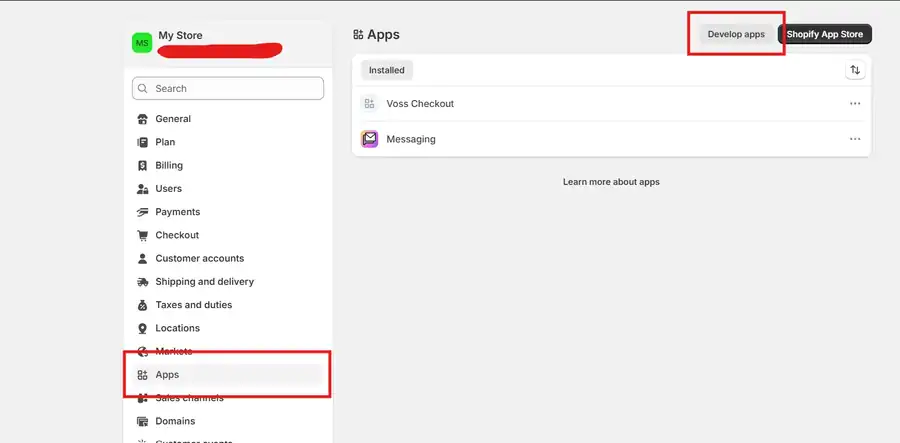
- Sign in to Shopify and open the store you want to use with Voss.
- In Shopify, open Settings → Apps → Develop apps → Build in dev dashboard.
- On the Dev Dashboard Home screen, select Create an app and name it Voss Checkout.
- For the App URL and allowed redirection URL, paste the values provided in the Voss onboarding wizard. Make sure Embed app in Shopify admin is off.
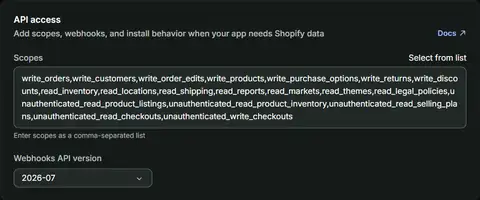
- Copy the Scopes supplied by Voss into the Shopify app's permissions, then create or release the app version as Shopify instructs.
- In the app's Overview → Installs, select Install app, choose the correct store and approve the installation.
- Open Dev Dashboard → Apps → Voss Checkout → Settings → Credentials. Copy its Client ID and Client secret into the secure connection form in Voss.
- Enter the store's permanent address, such as
your-store.myshopify.com, not its public domain, and select Connect store.
If Shopify will not connect
Check that you are in the Shopify organization that owns the store, the store has a plan selected, the app is installed on that store, the permissions are complete, and the credentials came from the Dev Dashboard, not ordinary store settings.
Step 3 — Confirm store details and install the Voss checkout line
After Shopify connects, review the store details Voss displays, including your policy links and store currency. Then activate the storefront connection. Connecting Shopify does not, by itself, change where customers go when they click checkout.
- In Voss onboarding, open the theme-installation step and copy your unique Voss installation line.
- In Shopify, go to Online Store → Themes and find the current published theme.
- Choose ⋯ → Edit code → Layout → theme.liquid.
- Locate the closing
</body>tag near the bottom. Paste the installation line directly above it, then save. - Open your storefront in a new tab. Return to Voss and click Check connection. Continue only when Voss confirms the installation is active.
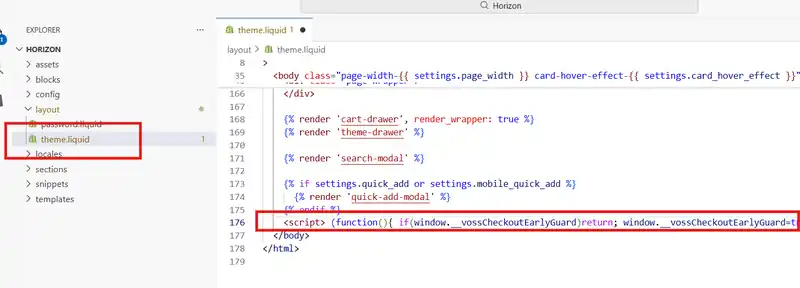
Do not paste an example script from a blog or reuse another store's line. When changing themes later, run the Voss connection check again to make sure checkout still routes correctly.
You only install the line once per published theme. If you later want your Shopify checkout back, use Dashboard → Settings → Checkout routing to turn Voss Off. New checkout visits return to Shopify without removing or reinstalling that theme line. See the On/Off switch and safety requirements →
Step 4 — Choose a domain and add tracking
A custom checkout domain is optional. You can initially use the checkout address Voss provides. If you want a branded checkout subdomain, follow the DNS instructions in your dashboard and wait for verification before using it in ads.
If you run Meta, TikTok or Google Ads campaigns, configure tracking in the Voss dashboard. Meta supports Pixel and server-side Conversions API where configured, TikTok tracking is supported, and Google Ads uses a browser-based Purchase conversion with your Conversion ID and Label. Test receipt in Google Ads or Tag Assistant; Voss cannot directly confirm Google's acceptance of browser events. Shopify-only pixel integrations do not automatically cover an external checkout.
Step 5 — Verify the checkout with a real order
Do this before sending customers from paid ads. Open the published storefront in a private window, add a product, and click checkout.
- Checkout destination: the button goes to your Voss checkout, not accidentally to Shopify's native checkout.
- Cart and totals: variant, quantity, currency, shipping, discounts and final amount match your store rules.
- Payment success: complete a small real purchase using an eligible payment method, then verify the transaction in Whop.
- Shopify write-back: the order shows up once in Shopify as paid, with the correct items and shipping details.
- Payment failure: an unsuccessful payment must not be treated as a paid order.
- Ads and fulfillment: check Meta Pixel/CAPI events and deduplication, TikTok events or Google Ads Purchase conversions if enabled; verify value and currency, order notifications and fulfillment.
For an actual payment-to-order timeline, read the anonymized Voss production order example. For recovery and duplicate-payment questions, see how external checkout orders sync to Shopify.
What stays in Shopify, and what changes?
| Stays in Shopify | Changes with Voss + Whop |
|---|---|
| Storefront, product pages and cart | The customer-facing checkout page is Voss |
| Products, variants and inventory | Payment processing is through your connected Whop business |
| Shipping and tax rules used to quote an order | Voss verifies totals before payment |
| Paid order records and fulfillment workflow | Voss syncs confirmed paid orders to Shopify |
Shop Pay and apps that require Shopify's native checkout may not work inside an external checkout. However, Voss's own checkout order bumps are live: up to three optional Shopify-product offers before payment. Explore built-in order bumps → Test other checkout-specific upsells, subscriptions and wallets separately; do not assume third-party extension parity.
How much does connecting Whop to Shopify cost?
Voss currently charges 0.5% per successfully processed order, with no Voss setup fee and no Voss monthly software fee. Whop's payment-processing charges are separate.
Using a separate checkout does not guarantee faster payouts, payment approval or immunity from holds. Whop controls account eligibility, compliance checks, available methods and withdrawal timing. See Voss pricing for the Voss software fee.
Frequently asked questions
Can Whop itself support Shopify physical products?
Whop now promotes checkout for physical products with Shopify fulfillment integration. This guide covers Voss's separate checkout connection; compare the direct Whop physical-commerce offering before deciding which integration to use.
Can I choose Whop under Shopify Settings → Payments?
No. Whop is not a native Shopify payment provider. Voss connects Shopify to Whop by routing the storefront's checkout button to a separate checkout, then writing successful paid orders back to Shopify.
Do I need Shopify Plus to use Voss?
Voss uses a separate checkout rather than editing Shopify's hosted checkout. You do not need Shopify Plus for the Voss setup, but your Shopify store must have an eligible active plan and the permissions needed to install your store-owned app.
Is a Shopify App Embed required?
No. Keep 'Embed app in Shopify admin' turned off when creating the store-owned app. To activate Voss on your storefront, copy your unique Voss installation line and paste it into the published theme's theme.liquid file above the closing body tag.
Can I use my normal store domain instead of a myshopify.com address?
Use the permanent address ending in .myshopify.com when connecting Shopify. Your public domain can stay as the storefront address; a branded checkout subdomain is optional.
Can I turn Voss off and switch back to Shopify checkout later?
Yes. After installation, open Dashboard → Settings → Checkout routing and turn Voss checkout Off. New checkout visits return to Shopify's own checkout without deleting or reinstalling the Voss theme line. Shopify needs an active native payment provider. Turn Voss On again when ready.
Will paid orders still appear in Shopify?
Yes. After a verified successful Whop payment, Voss writes the corresponding paid order back to Shopify for normal order and fulfillment work. Always verify the complete flow with a real small order before running ads.
Can Whop still review or reserve funds?
Yes. Your Whop account must remain eligible to process payments and is subject to Whop's reviews, restrictions and payout policies.
Ready to connect your store?
Keep Shopify. Test the checkout before going live.
Connect your own Whop business, install the store-specific theme line and confirm your paid Shopify order. Start free Voss setup →
Start Voss onboarding with your own Shopify store and Whop business. Follow the checklist above, verify the published theme and complete one real order before sending live traffic.
Connect Shopify to Whop with Voss → · See how Voss works → · Ask a setup question →
Official references: Shopify payment providers · Editing Shopify theme code · Whop developer documentation.
Keep Shopify. Use your own Whop account for checkout.
Your storefront stays where it is. Customers pay through a branded checkout, and successful paid orders are sent back to Shopify for fulfillment.
Whop processing fees, eligibility checks and account rules still apply.